


 Turn a photo into a pencil sketch
This is by far one of the easiest things I've learned how to do in GIMP. The hardest part by far is setting up the color levels (I'll demonstrate in a bit).
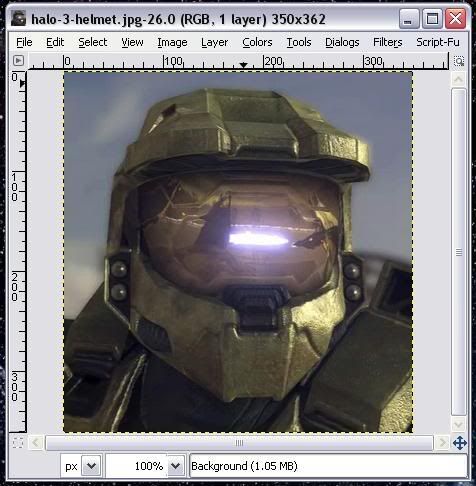
Now granted, I didn't use a true photo for this. In honor of the current Modder's Challenge, I have decided to use everyone's favorite Master Sargeant:
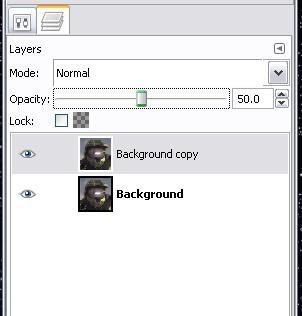
So first off, duplicate the background layer and set opacity of the copy to 50%:
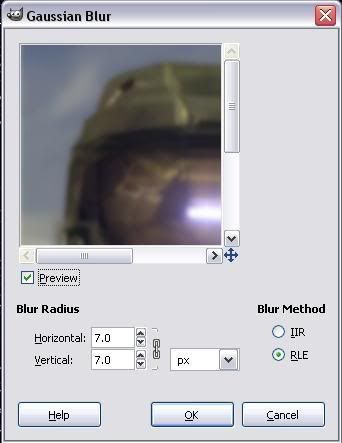
Then we're going to add a Gaussian Blur @ 7 px. A higher number will in theory give thicker lines, but that can be overkill. 7 seems to be the best all around number.
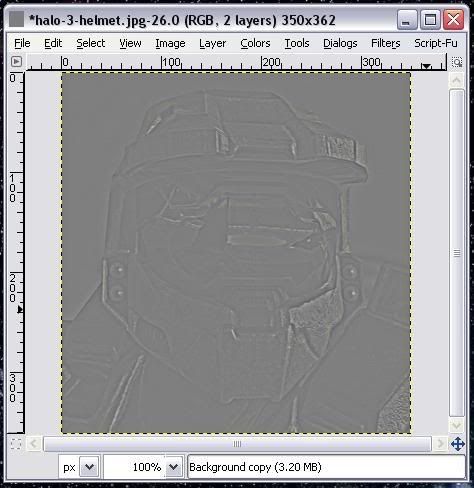
Then go to Colors:Invert and you picture has effectively been put through a high pass filter. In other words, the detail is still present, but the gradients (various shades of color) have been removed.
Pretty simple, isn't it? All right, enough reflection on your new found power, back to work!
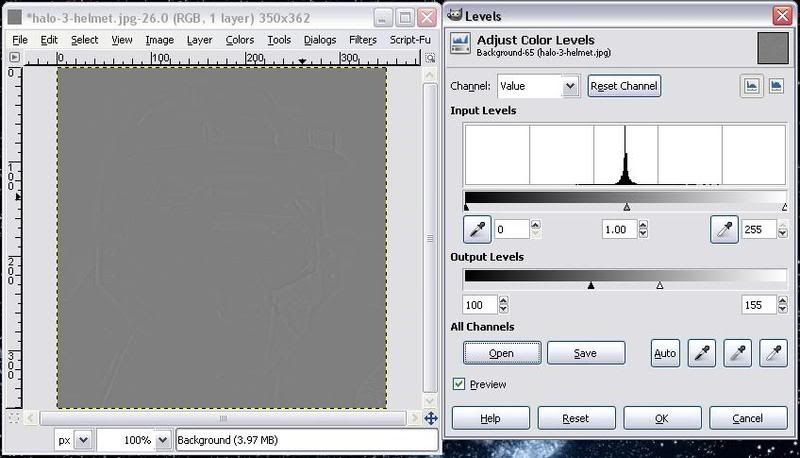
Merge your layers into one layer. Now, open up Colors:Levels and set the output values to 100 on the left and 155 on the right. Your Level dialog box should look like this:
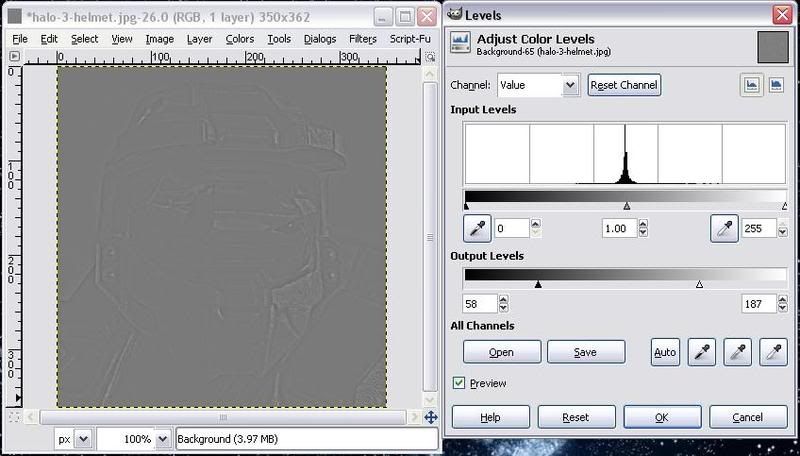
Every picture is going to be different. Play around with the two numbers until you can see the outline of your picture. For this example, I set the left hand number to 58 and the right hand number to 187. Now my picture looks like this:
Click ok, and then select Colors/Desaturate. You'll have three choices, any one of them will suffice. Press Desaturate and then reopen the Colors:Layers dialog box.
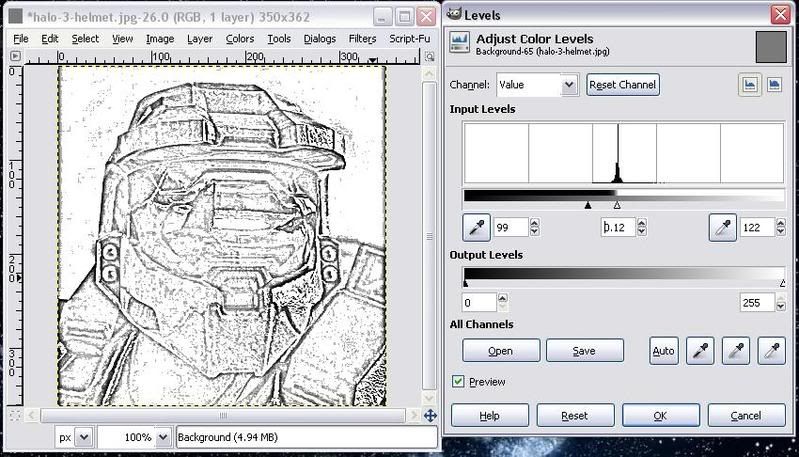
Now we're going to play around with the input levels. There's three different values we can (and will) adjust to remove all the light gray from the picture, thus leaving behind the outline. Again, each picture will be different. It took me less than five minutes to go from this:
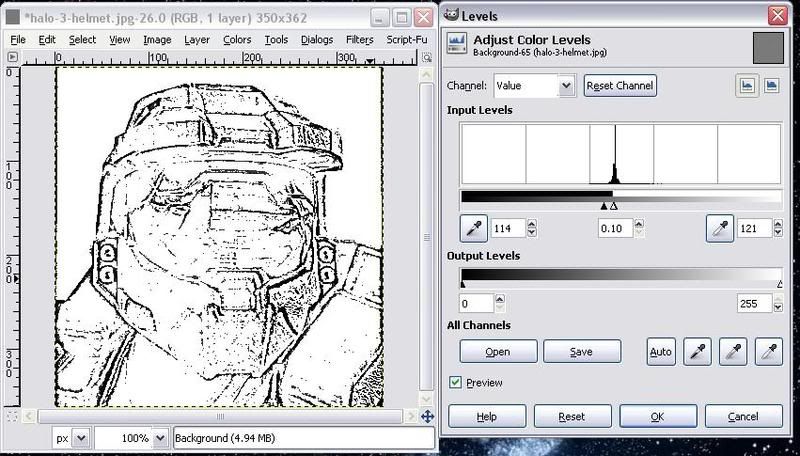
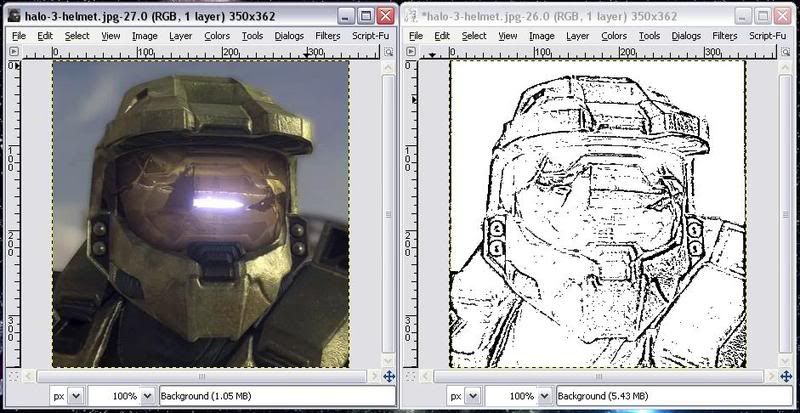
To this:
Further manipulation could be done, but hey, I happen to like the looks of this, so I'm going to hit OK and be done with it.
And here's a Before and After shot:
Until next time...
 Originally Posted by artoodeeto


